App settings
Every installed app is configured on one screen, and every app's screen works the same way. Understand the mechanism once and you can configure the Shipping app as confidently as the Products app.
Where you find it
App Studio › Installed Apps › (app) › Settings — the second tab of an
app's detail page, at /apps/settings/{owner}/{name}.
What it does
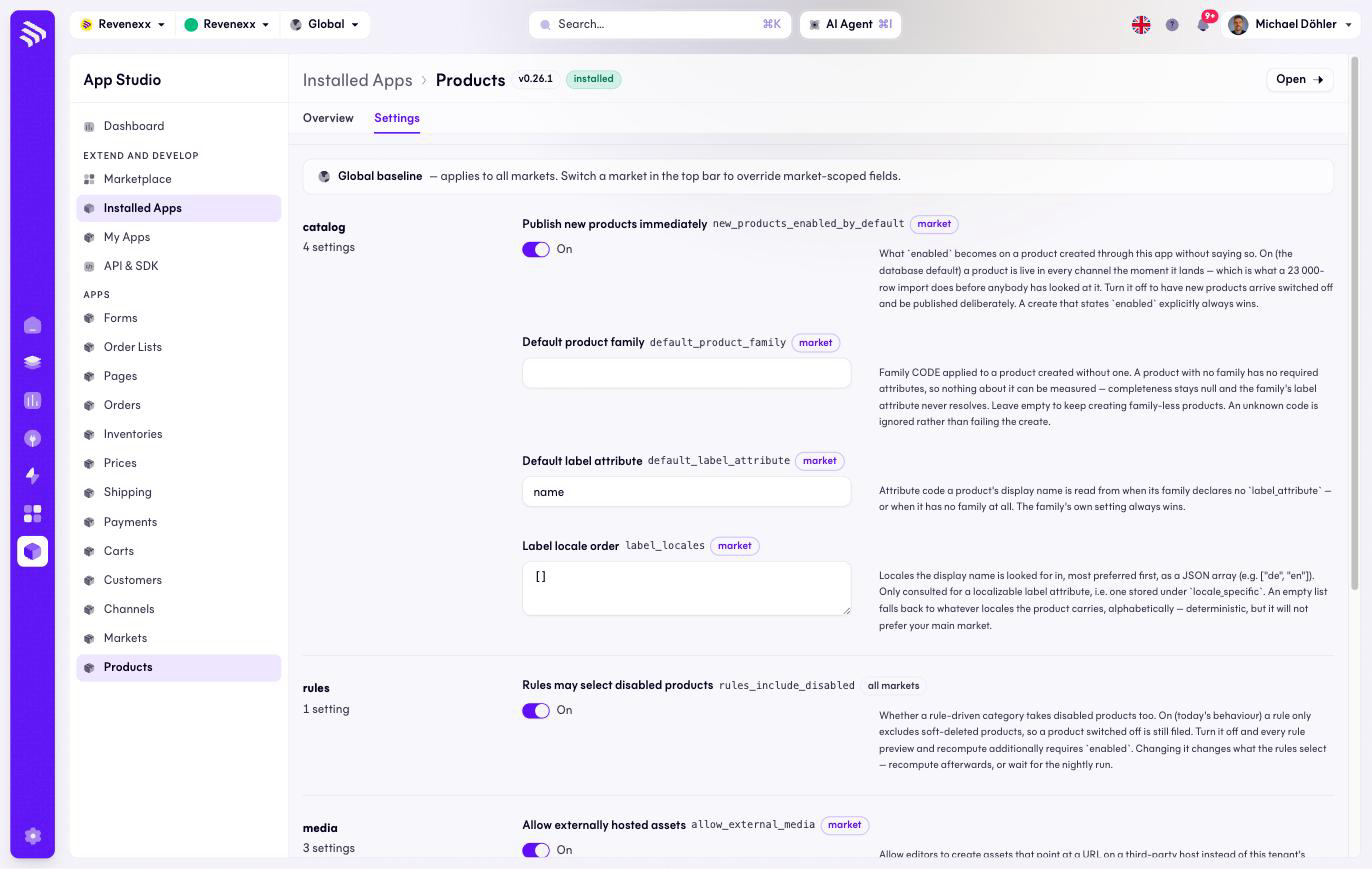
The form is not hand-built for each app. An app ships a settings schema (its
settings.json), and the Cockpit renders it: a section per group, and per
setting a label, the machine key, a scope badge, and a help text that explains
what the value changes. There is no configuration file to find and no deploy —
the form is the configuration.
For the Products app, for example, the catalog section holds four settings (a toggle for whether new products are published immediately, the default product family, the default label attribute, and a JSON list of label locales) and the rules section holds one.
How market scoping works
This is the part worth reading slowly, because it decides where a value actually applies.
Each setting is declared as either tenant-scoped or market-scoped, and the badge next to it says which (all markets or Market):
| Scope | Behaviour |
|---|---|
| All markets (tenant) | One value for the whole tenant. |
| Market | A global baseline, which each market can override. |
When you open the form without a market selected, a banner explains that you are editing the global baseline: these values apply to all markets. Switch the market in the topbar and the market-scoped fields now edit that market's override, leaving the baseline and every other market untouched.
This is how one app carries different behaviour per country — the same setting, one baseline, and an override where a market needs to differ. Before you change a market-scoped value, check the topbar: the selected market decides what you are editing.
Fields and controls
| Control | What it does |
|---|---|
| Toggles, text inputs, JSON fields | One control per setting, typed by the schema. |
| Scope badge | Market or all markets — where the value applies. |
| Machine key | The setting's technical name, useful when talking to support or reading the app's documentation. |
| Market selector (topbar) | Switches between the global baseline and a market's overrides. |
What happens when you change it
A saved value takes effect for the scope you edited: the whole tenant, or the selected market. The help text under each setting states the consequence — read it before flipping a toggle, because some defaults are deliberate. The Products app, for instance, publishes new products immediately by default, which is exactly what a 23,000-row import does before anyone has reviewed it; the help text says so and tells you when to turn it off.
Permissions
The form edits configuration, not the app's data — the app's own data permissions are listed on its detail page. Which Cockpit roles may change app settings is not verified.
Related
- Installed apps — the detail page this tab belongs to.
- Guide: Apps and the Marketplace