Dashboard
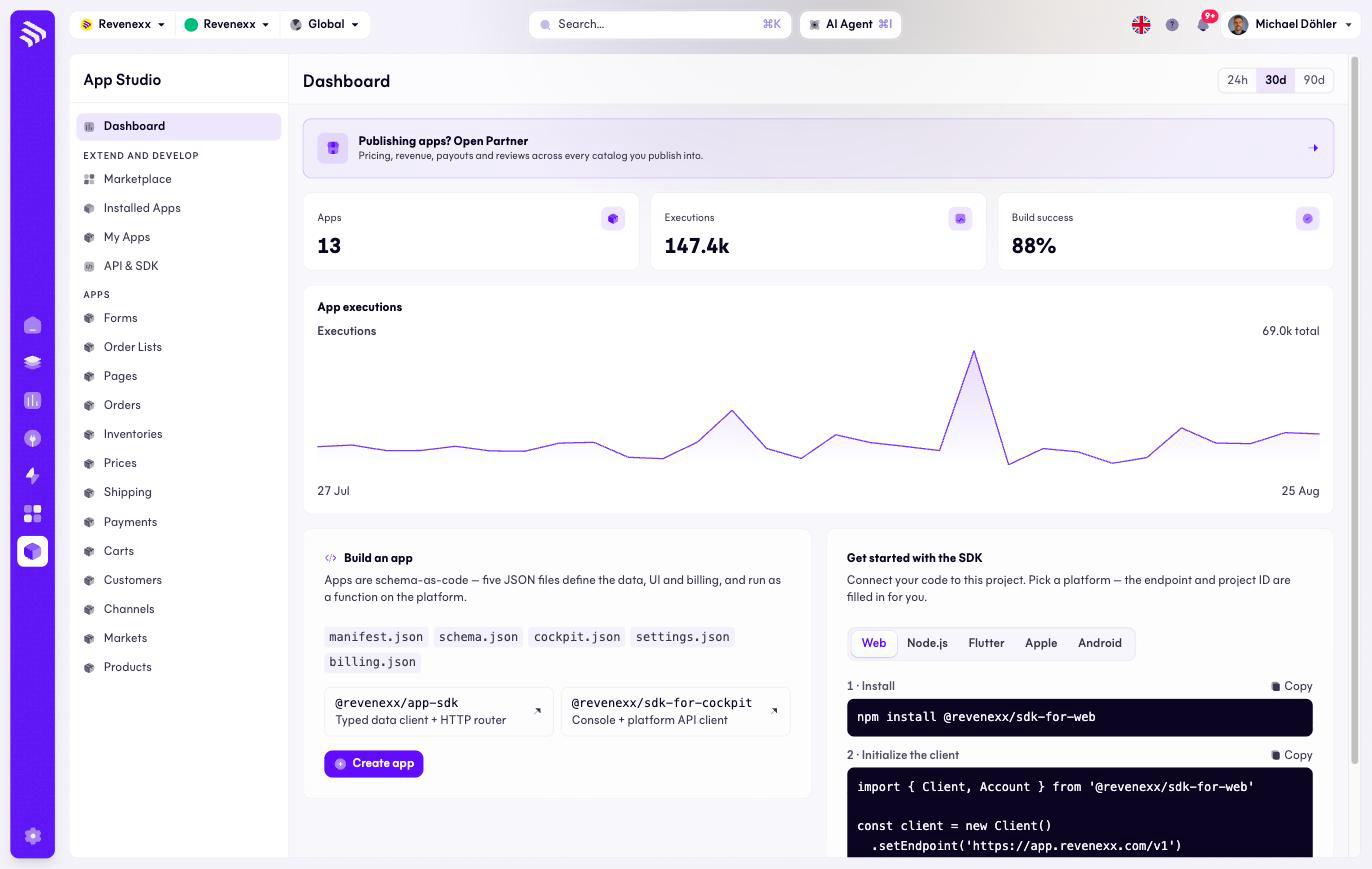
The App Studio dashboard answers two questions: what is running on your tenant, and where do you start if you want to build something yourself.
Where you find it
App Studio › Dashboard — /apps/dashboard, the screen App Studio opens on.
What it does
Three counters sit at the top: Apps (how many are installed), Executions (how often app code ran on the platform), and Build success (the share of app builds that completed). An executions chart below them switches between the last 24 hours, 30 days and 90 days.
The rest of the screen is for teams that build: a Build an app card explains
the app model — an app is defined by five JSON files (manifest.json,
schema.json, cockpit.json, settings.json, billing.json) and runs as a
function on the platform — and an SDK quickstart shows the install command for
each platform (Web, Node.js, Flutter, Apple, Android) with a copy button per
snippet.
A banner for app publishers links to Settings › Partner, which is currently a preview with sample data.
Fields and controls
| Control | What it does |
|---|---|
| Apps / Executions / Build success | Live counters for your tenant. |
| Range switch | Scopes the executions chart to 24 h, 30 d or 90 d. |
| Create app | Starts a new app of your own — the same flow as My apps. |
| SDK snippets | Copy buttons for the install command per platform. |
| Partner banner | Opens Settings › Partner. |
What happens when you change it
Nothing on this screen writes data except Create app, which begins the new-app flow. The counters and the chart are read-only.
Permissions
The dashboard shows tenant-wide execution and build figures. Which Cockpit roles may open App Studio is not verified.
Related
- My apps — where a created app appears.
- API & SDK — the developer reference the quickstart points into.
- Guide: Apps and the Marketplace