Assets
Assets is the media library of the PIM: product images, CAD models, datasheets and archives live here, and products reference them by code.
Where you find it
Commerce Studio › PIM › Assets — /commerce/assets
What it does
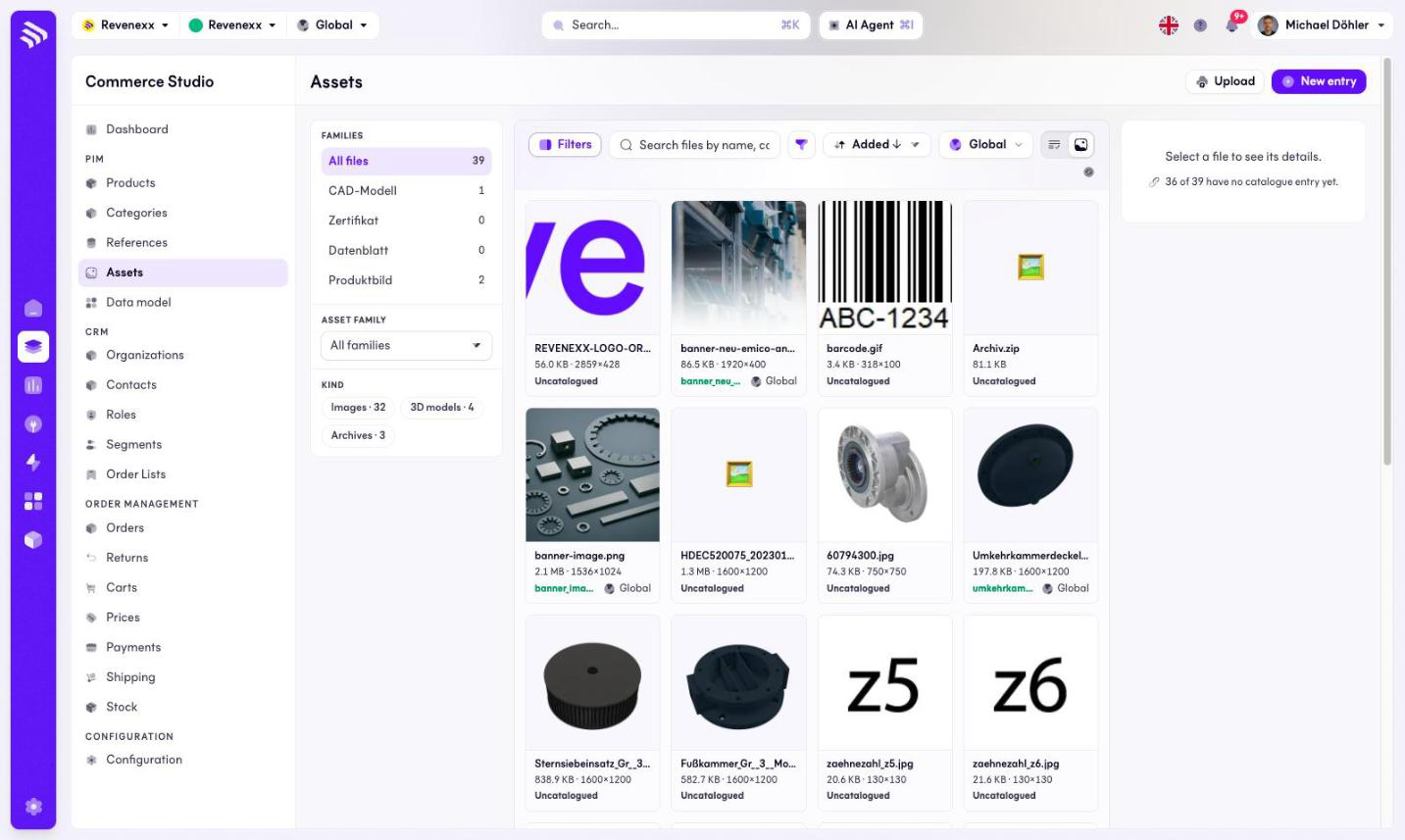
The screen is a gallery. Each card shows the filename, size and dimensions, the catalogue code — or "not catalogued" — and a market badge. A banner counts the files that have no catalogue entry yet, because a file without one cannot be referenced by a product.
A panel on the left filters by asset family (all files, CAD model, certificate, datasheet, product image); chips filter by kind (images, 3D models, archives). Search covers name, code and key.
Clicking a card opens the Asset details panel on the right:
| Panel | Contents |
|---|---|
| File · Storage | Kind, size, dimensions, folder, alt text, delivery key, storage ID, upload date. |
| Catalogue entry | The catalogue record — or a "catalogue this file" action when there is none. |
| Transformations | The derived renditions: thumb, web, zoom. |
| Used by | Explains that product usage is not tracked here. |
Fields and controls
Toolbar: Upload, New entry, a filter toggle, a sort control (newest first by default), a list/grid switch and a market selector. Pagination offers 10 to 100 cards per page.
What happens when you change it
Uploading stores the file; cataloguing it creates the record a product can reference through an asset-collection attribute. Until a file is catalogued it sits in the library unused, which is what the banner is counting.
Permissions
The products app declares create, read, update and delete on assets in its manifest. Which Cockpit roles may open this screen is not verified.
Related
- Asset families
- Guide: Assets