Organizations
In B2B the customer is a company, and the organization list is where those companies live: one row per account, with the commercial facts on file for each — terms, credit limit, status, delivery block.
Where you find it
Commerce Studio › CRM › Organizations — /commerce/organizations
What it does
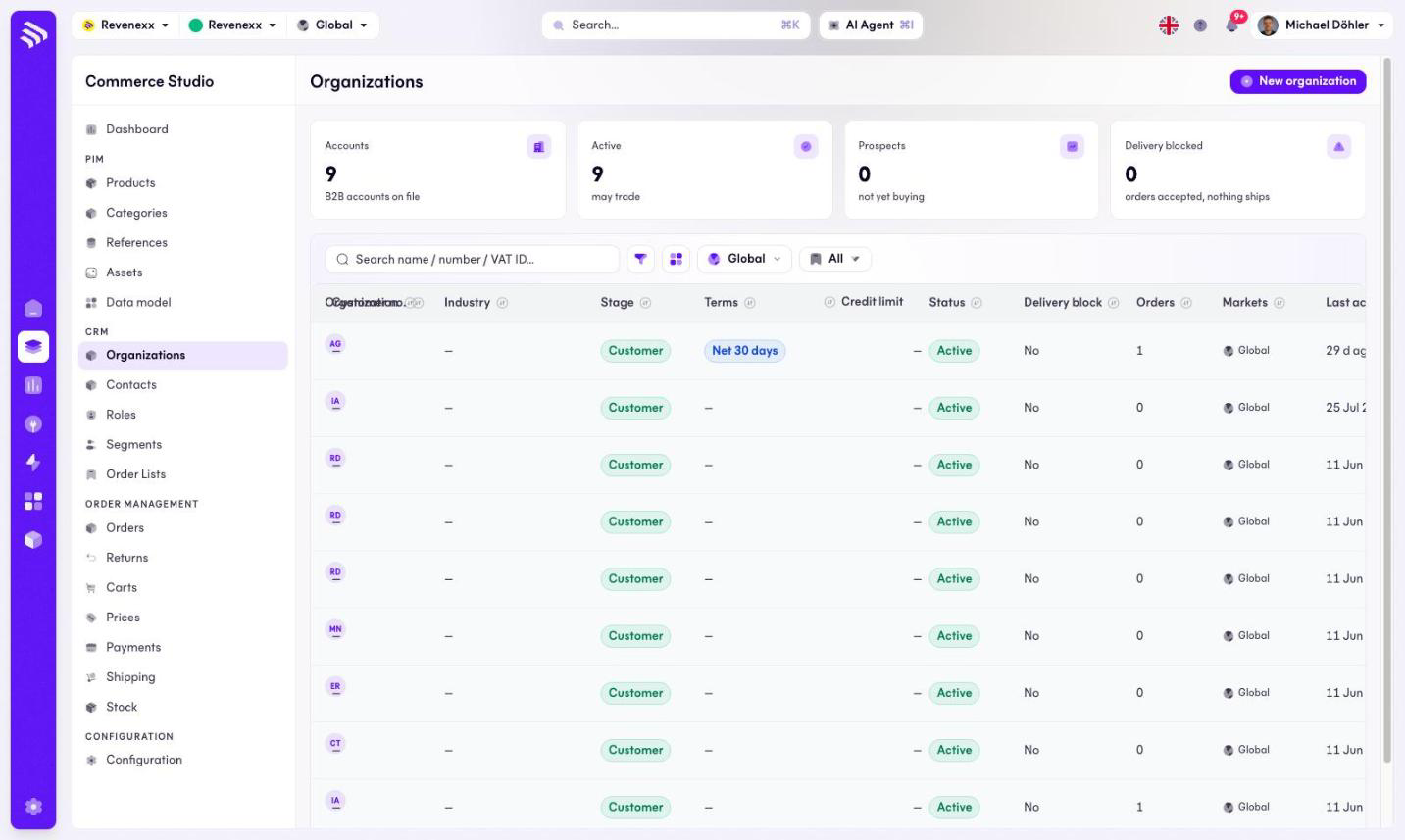
KPI cards count the B2B accounts on file, how many are active, how many are prospects (not buying yet) and how many have an active delivery block. The table lists the companies; the name links to the organization detail.
Fields and controls
| Column | What it shows |
|---|---|
| Organization | Name and VAT ID (or a "no VAT ID" hint). |
| Customer no. | The company's number in your ERP. |
| Industry | Free text. |
| Stage | The pipeline stage: Lead, Prospect, Customer, Churned. |
| Terms | The agreed payment terms, for example Net 30 days. |
| Credit limit | The ceiling on open receivables. |
| Status | Active or Blocked. |
| Delivery block | Whether a delivery block is set. |
| Orders | Order count. |
| Markets | Market assignment. |
| Last activity | The most recent timeline entry. |
Toolbar: New organization, a search box for name, number or VAT ID, a filter toggle, a column picker, a market selector and saved views.
What happens when you change it
Stage and status are separate axes on purpose. Stage says how far along the company is in your pipeline and grants nothing; status records whether you have blocked the company. Status, credit limit and delivery block are values on the company record; changing them here changes what the list and the detail page show.
Permissions
The customers app declares create, read, update and delete on organizations in its manifest. Which Cockpit roles may open this screen is not verified.
Related
- Organization detail
- Guide: Organizations
- Guide: Block a customer