Themes
A theme is the look of a storefront — installed once, then activated on the domains that should wear it. Two screens share the job: Installed Themes manages what is on your tenant, the Theme Marketplace is where new ones come from.
Where you find them
Experience Studio › Extend and Develop › Installed Themes —
/experience/themes — and Experience Studio › Extend and Develop ›
Marketplace — /experience/theme-marketplace. The sidebar entry says
Marketplace; the page title is Theme Marketplace.
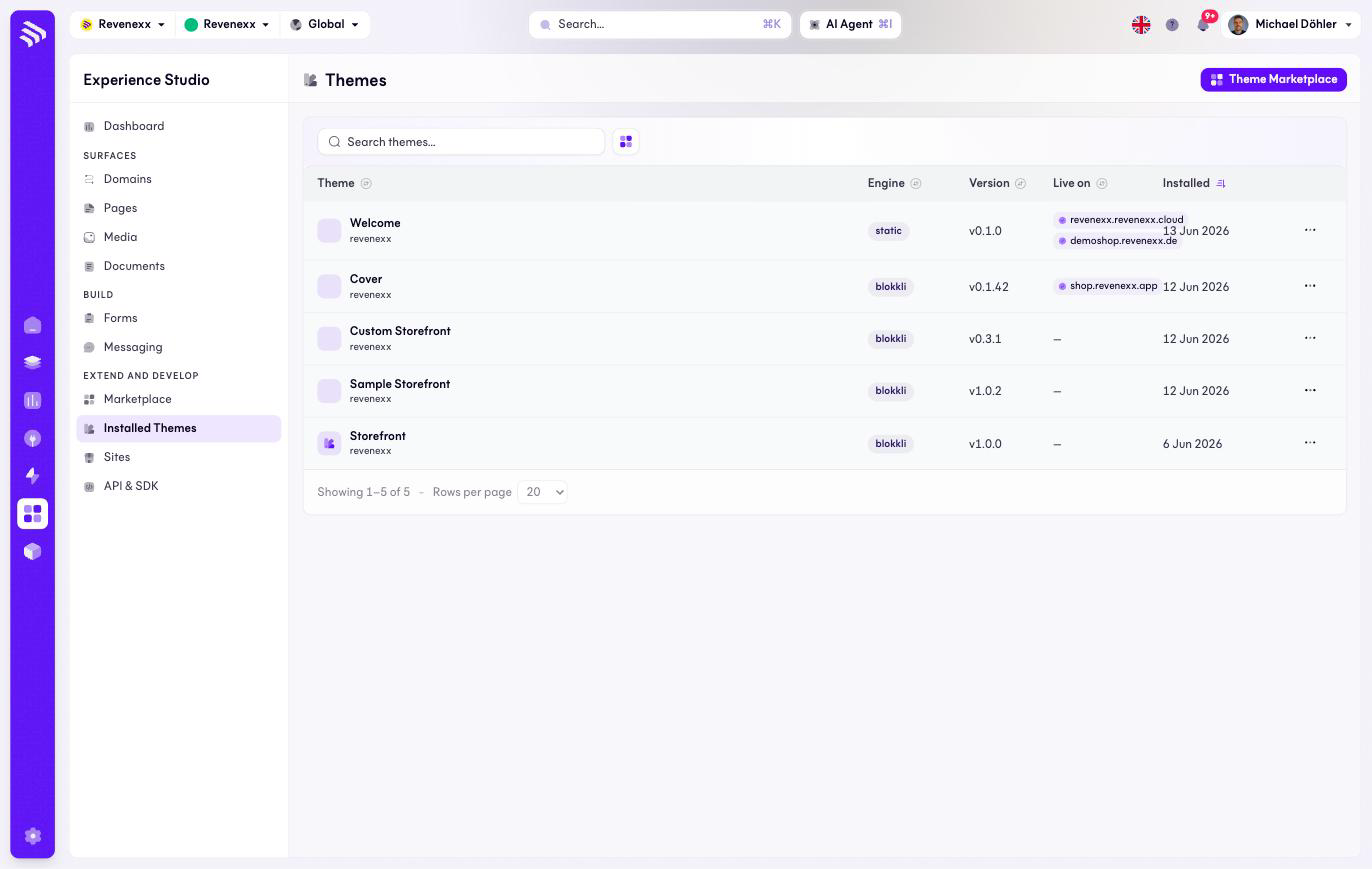
Installed Themes
| Column | What it shows |
|---|---|
| Theme | Name and owner (vendor). |
| Engine | How the theme renders — static, or blokkli for themes with the block editor. |
| Version | The installed version. |
| Live on | The domains this theme currently serves, or — if none. |
| Installed | When it was installed. |
Each row has a … menu; the Theme Marketplace button navigates to the marketplace.
Theme Marketplace
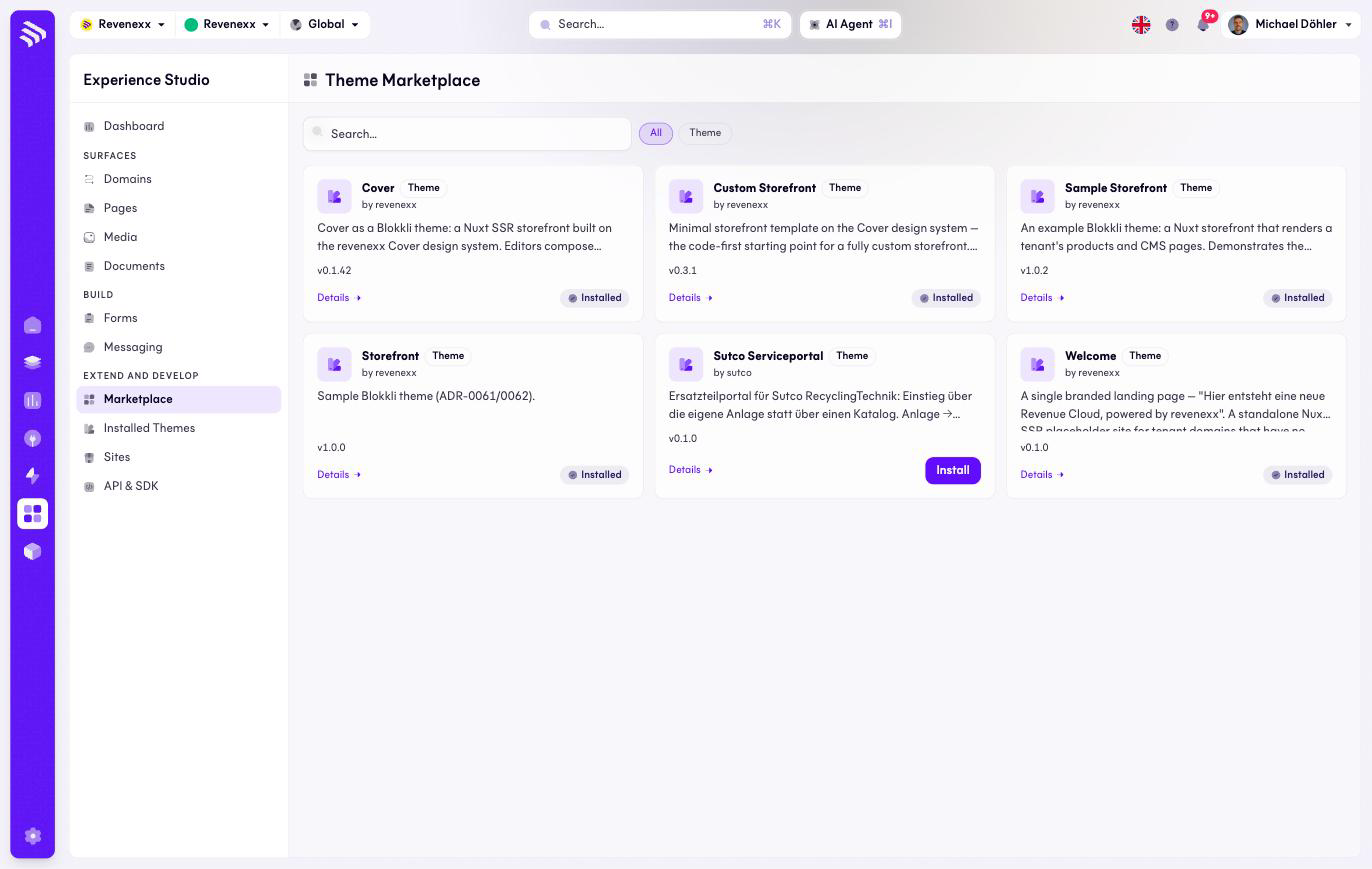
Theme cards with name, vendor and version. Installed themes carry an Installed badge; others offer Install. Each card links to a Details page. Search and a type chip row filter the catalog. Third-party vendors list here too, next to the platform's own themes.
What happens when you change it
Installing a theme puts it on the tenant; it changes nothing a buyer sees. The visible step is activating a theme on a domain — from that moment the domain serves the new look. The Live on column is the audit: a theme that is live somewhere cannot be uninstalled without deactivating it there first.
Permissions
Not verified.