Orders
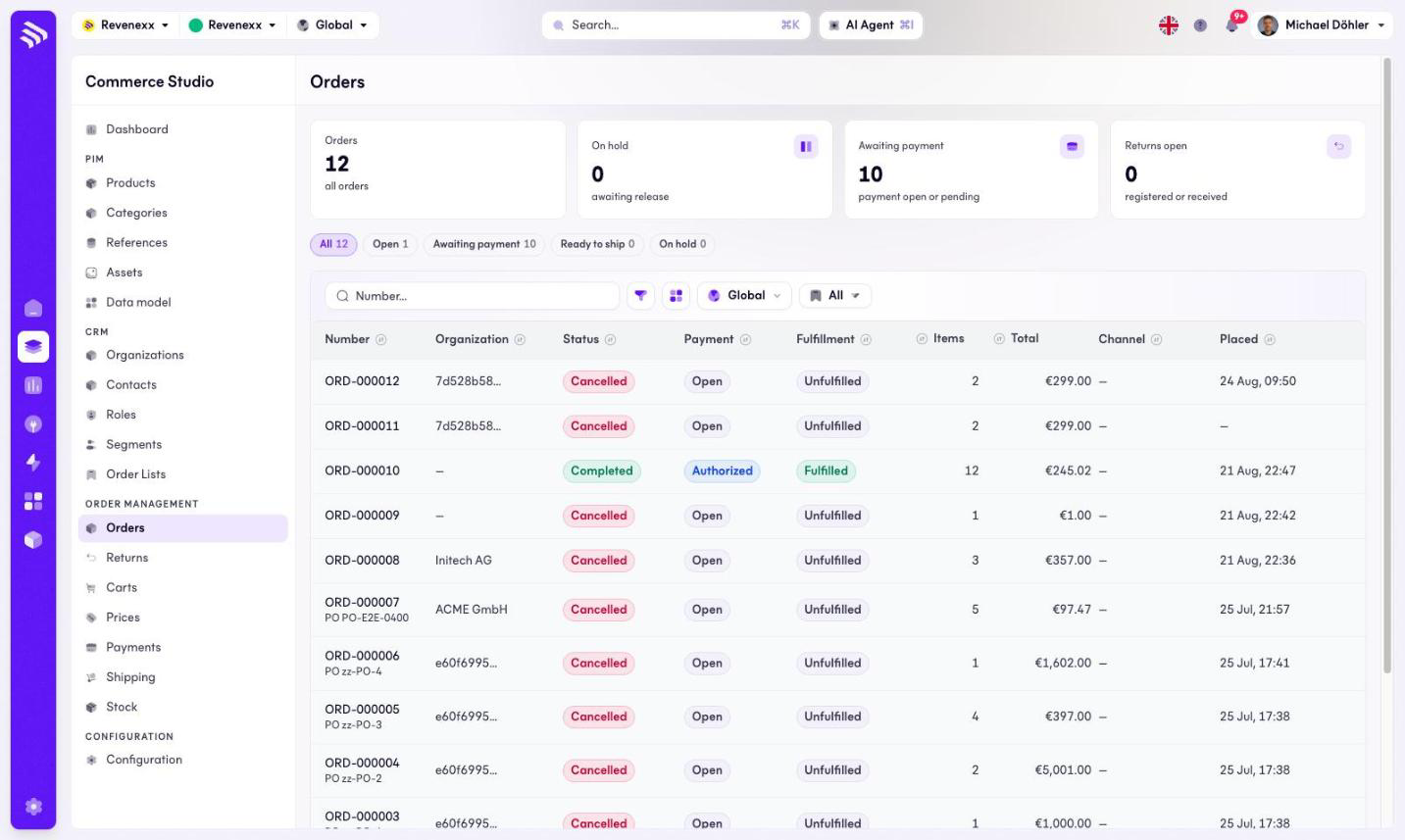
The order list shows every order on your tenant. Each row carries three status columns side by side — lifecycle, payment, fulfillment — because in B2B those are three different questions with three different answers.
Where you find it
Commerce Studio › Order Management › Orders — /commerce/orders/list
What it does
KPI cards count all orders, the held ones (waiting for a release), the ones waiting for payment and the open returns. Quick chips narrow the list to open, waiting for payment, ready to ship or held orders. Clicking a row opens the order detail.
There is no create button. Orders are placed by the storefront or an integration, never typed into the Cockpit.
Fields and controls
| Column | What it shows |
|---|---|
| Number | The order number, for example ORD-000010. |
| Organization | The buying company, frozen at place-time. |
| Status | The lifecycle: Placed, Completed, Cancelled. |
| Payment | Open, Authorized, Paid and their siblings. |
| Fulfillment | Unfulfilled, Partial, Fulfilled. |
| Items | Line count. |
| Total | The order total. |
| Channel | The sales channel that placed the order. |
| Placed | When the order was placed. |
Toolbar: a number search, a filter toggle, a column picker, market scope, a saved view selector and a page size of 10 to 100 rows.
What happens when you change it
The list itself changes nothing — every action lives on the order detail.
Permissions
The orders app declares create, read, update and delete on orders in its manifest. Which Cockpit roles may open this screen is not verified.
Related
- Order detail
- Guide: The three statuses
- Guide: Process an order