Stock
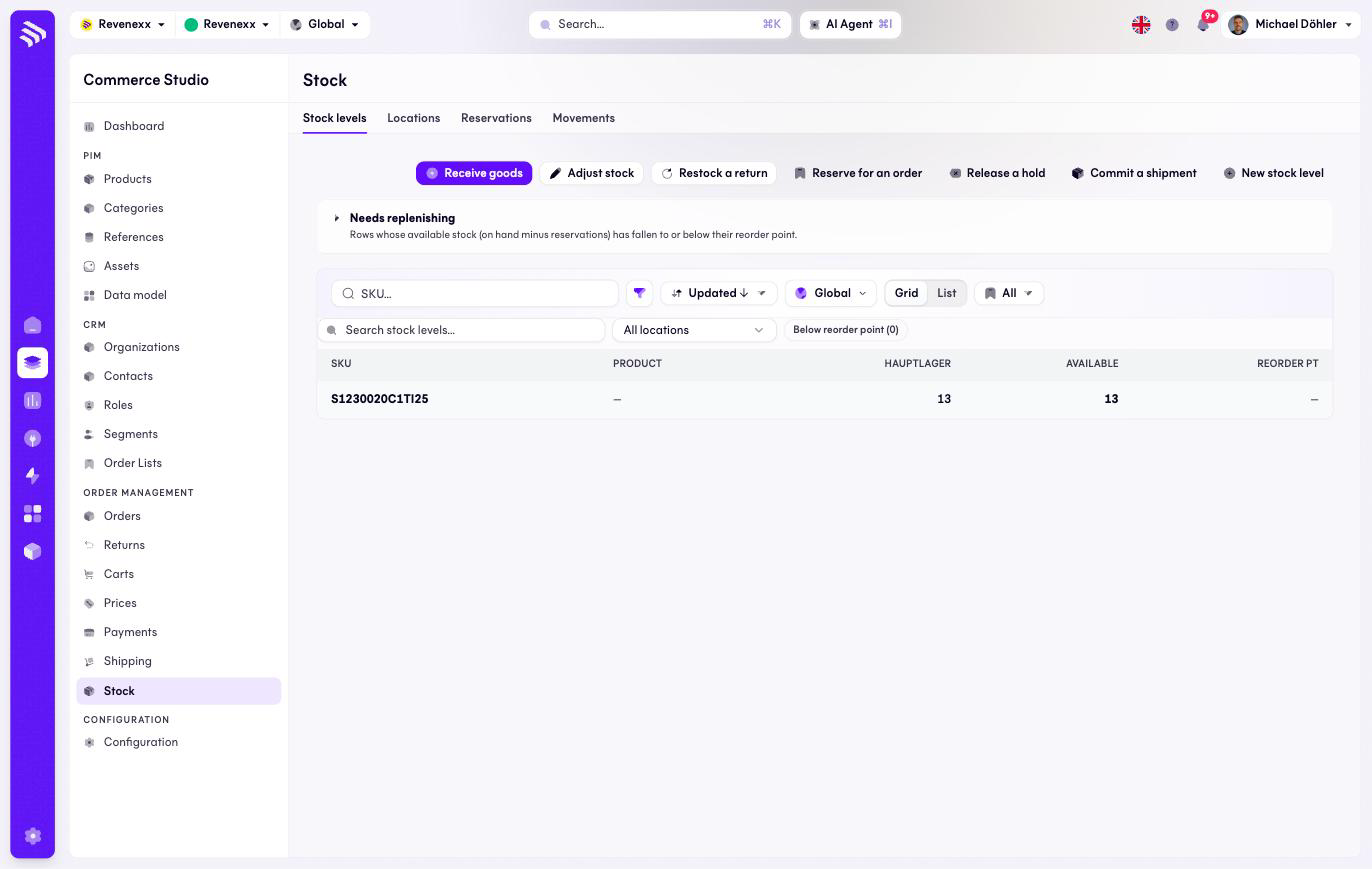
Stock shows what is on hand, what is reserved and what is available, per SKU and location. The page has four tabs: the stock levels, the locations, the reservations and the movement ledger.
Where you find it
Commerce Studio › Order Management › Stock — /commerce/inventories. The
tabs address ?tab=stock, locations, reservations and movements.
What it does
The Stock levels tab is a grid of SKU × location, with the available quantity and the reorder point per cell. A banner explains the rows below their reorder point, and a filter chip pulls exactly those. A location select narrows the grid to one warehouse.
On-hand and reserved are not fields you edit. They are the running total of the movement ledger, and the header actions are the only way to move them:
| Action | Books |
|---|---|
| Receive goods | Inbound stock. The primary action. |
| Adjust stock | A signed correction with a reason — a stocktake difference. |
| Restock a return | Returned goods back into stock. |
| Reserve for an order | A reservation against available stock. |
| Release a hold | A reservation back to available. |
| Commit a shipment | A reservation out of the warehouse. |
| New stock level | A new SKU × location row. |
Fields and controls
| Column | What it shows |
|---|---|
| SKU | The article. |
| Product | The product, where linked. |
| Location | One column per location, for example Hauptlager. |
| Available | On hand minus reserved. |
| Reorder point | The low-stock threshold. |
Toolbar: a SKU search, a filter toggle, a sort control, a grid/list layout switch, market scope, the location select and the below-reorder-point chip.
What happens when you change it
Every action books a movement row — that is the audit trail on the Movements tab. An adjustment cannot push stock below zero or below what reservations hold. Falling below the reorder point raises the low-stock signal the banner and the chip read from.
Permissions
The inventories app declares create, read, update and delete on locations, stock levels, movements and reservations in its manifest. Which Cockpit roles may open this screen is not verified.
Related
- Guide: Stock and locations
- Guide: Manage stock